Protecting on Windows
This section explains how to protect a file on Windows computers. You must have the Seclore for Windows agent installed.
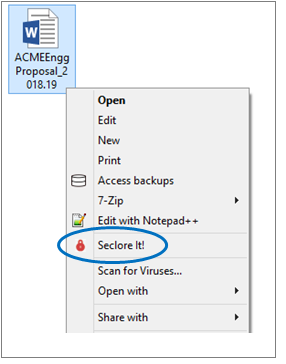
To protect a file, simply right click on it and click Seclore It!.
You’ll be taken to the authentication page on your default browser if you’re not signed in in to your Seclore agent. For information on different ways to sign in, see Signing in to Seclore.
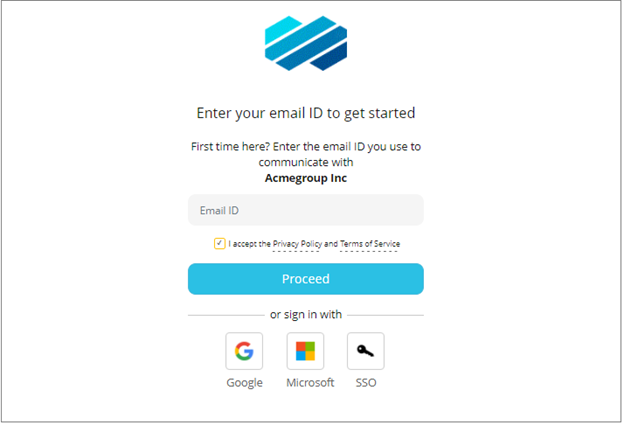
Next, you can define the file's classification and assign permissions in the following window.
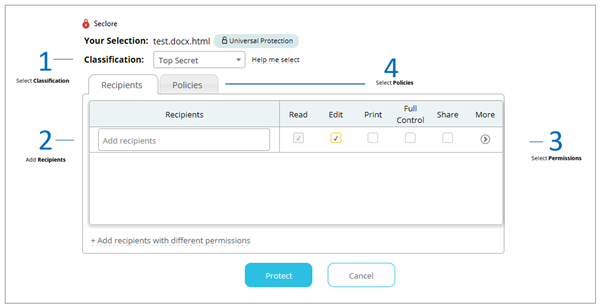
Click Protect. The file gets protected and a lock appears on the file icon.
Basic permissions
The various permissions available are described in the table below.
| Permissions | Permitted Recipient Actions |
| Read | Open and read the file on any computer, mobile device, or web browser |
| Edit | Edit the file and save it |
| Print the file | |
| Full Control | Open, edit, print, and unprotect the file |
| Share | Give permissions on the file to others |
Adding recipients and policies
1. Start typing the name of the desired recipient and select the user from the drop-down list.
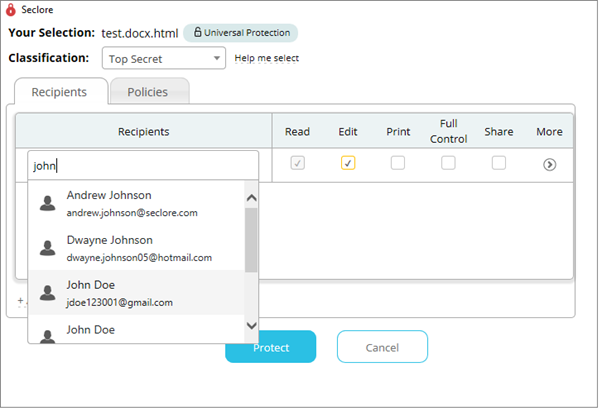
2. Press Enter to select the highlighted recipient. You can add multiple recipients with similar permissions in the same text box.
3. Click Add recipients with different permissions to add another set of recipients with different permissions. For new (unregistered) users, type the entire email ID in the box and press Enter. They will be registered automatically when the file is protected. They can access the file online (without setting a password) or locally by downloading the Seclore agent. See Opening Files Online for more details.
4. You can also add policies to the file from the Policies tab. Policies are predefined sets of users and permissions which can be used frequently. Contact your administrator to create policies.
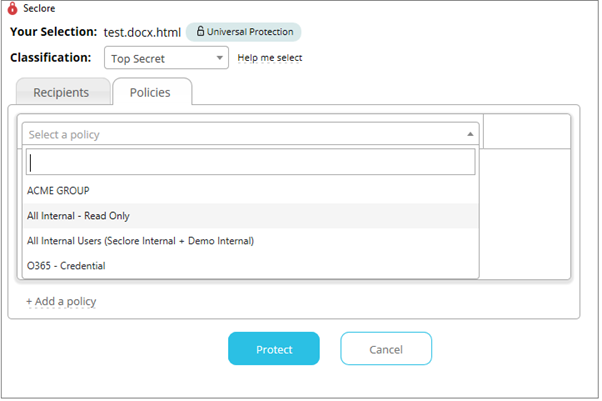
5. Click Protect when done. There is no change in the file name, extension, or format after protection. This file can now travel anywhere in the world - but the information inside it will remain secure and confidential. Only authorized users will be able to perform authorized activities on it.
All activities performed on this file will be logged, including attempts at unauthorized activities.
Advanced permissions
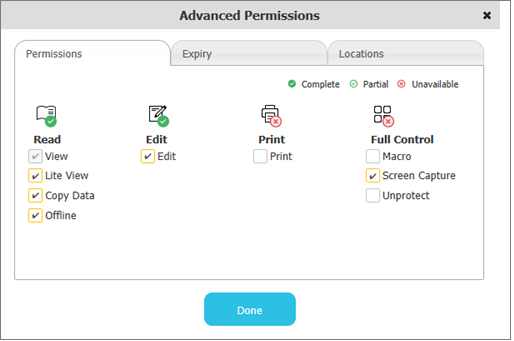
Click the arrow in the More column for advanced permissions, such as file expiry dates and locations.
Copies of a protected File
All copies of a protected file are also protected with the same set permissions as the original one.
Protecting multiple files simultaneously
To protect multiple files at once, select all the desired files, right click on any one of them, and click Seclore It! Follow the same procedure described above. All the selected files will get protected with the same classification and permissions.
You can also protect all files within a folder. Right click on the folder and click Seclore It!